How to use the Online Financial Aid Forms Submissions – FAFSA Verification
A Quickstart Guide
- Account creation for the first time
- Getting to know your Portal
- How to navigate the Requirements section
- About Student and Parent E-Sign
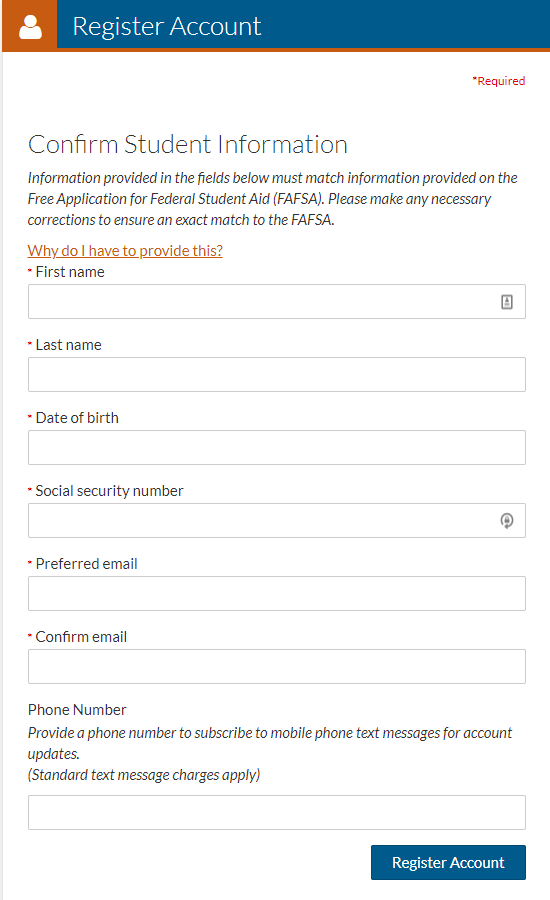
Account Creation
Complete any missing information and click the “Create Account” button. You will only create your account once. After that, you will be automatically signed in on any future visits to the page.
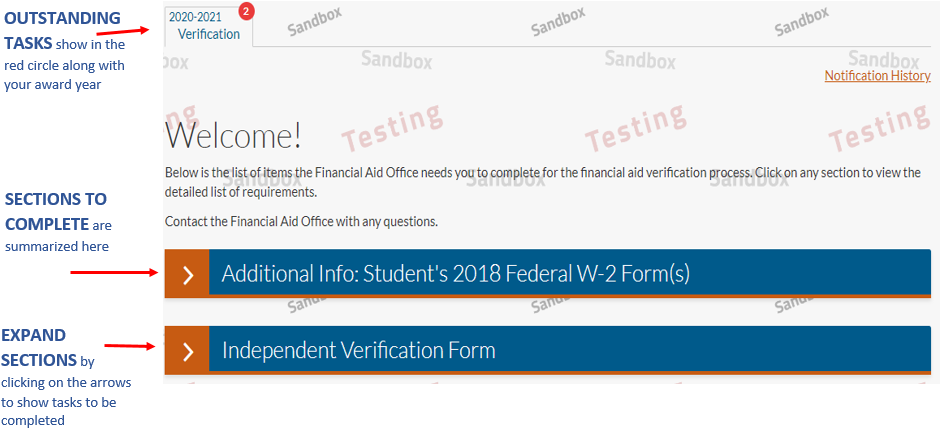
Your Portal
This overview provides a list of the sections you need to complete.
Click on the white arrows to open each section to see the individual tasks that need to be completed.
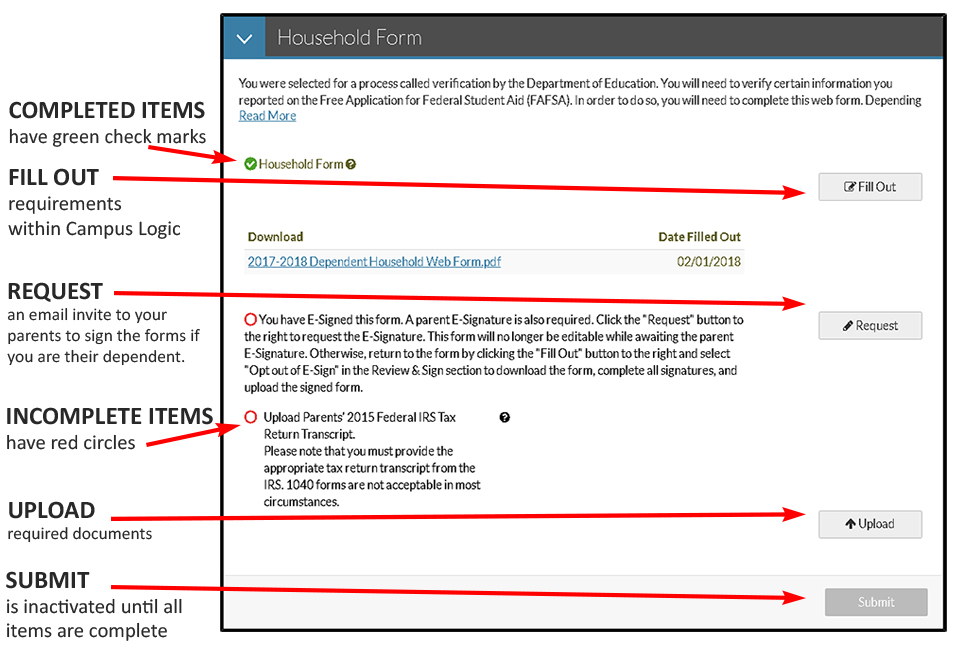
Navigating Requirements
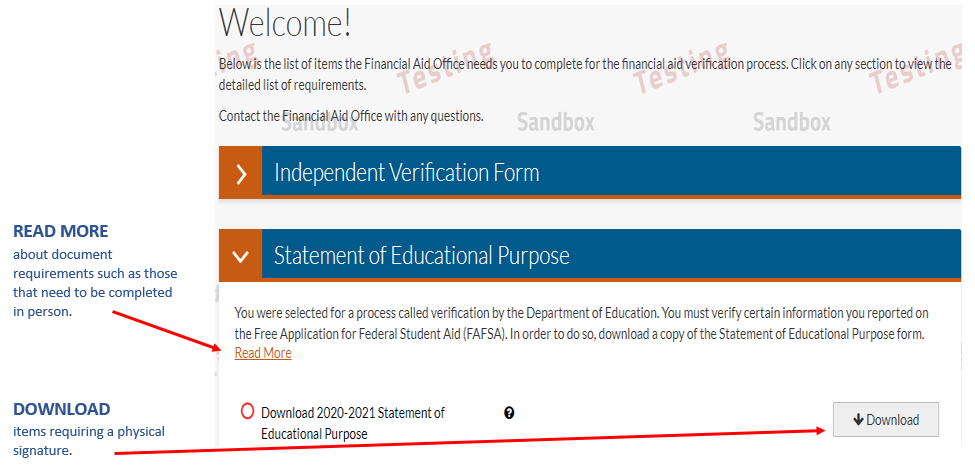
Each section will have tasks to be completed. Some areas will require you to fill out information within the program. Other areas will request you to upload documents such as a tax return transcript.
Once all tasks are complete, the Submit button will be enabled so you can submit your documentation to Verify My FAFSA.
E-Sign Process
There is now the ability for you and your parents (if you are a dependent), to electronically sign (e-sign) your Financial Aid documents instead of having to print them out and sign them. In order to do this, you will need to set up a PIN number which will be used in place of your hard-copy signature on the documents. Click here for E-sign procedures for Students and Parents.
Tips
- The information you used on your FAFSA needs to be the exact same information you use for your account. If you use a different name or other personal information than what is in your FAFSA you will be shown error code 1010.
- You must create your account before your parent does.
- Parents with multiple children will need to log in with a unique username and email for each child.
- Your parents password is also their E-sign (pin)
- Don’t forget that once your parent signs the requested documents, you will need to go back into the portal and ensure all required steps are complete.
- If you parent needs to email you a document, the email should be encrypted. Instructions for sending secure email with Berea 365